
Hide, delete or restrict? What to do with a bad comment on Instagram
Comment moderationUpdated By Team CommenSense
On this page
What's the difference between hiding and deleting?
| Hide | Delete | |
|---|---|---|
| Who can see the comment | The person who wrote it. Others only if they choose to view hidden comments. | Nobody. |
| Is the person told? | No. | CommenSense doesn't tell them, but they may notice it's gone. |
| Can it be undone? | Yes, in the Instagram app. | No. |
| Counts towards the comment total? | Yes. | No, it's removed. |
The hiding facts come from Instagram's help page on hiding comments. Because a hidden comment is still visible to the person who wrote it, hiding is the quieter option: they often don't realise anything happened, so there's less reason for them to come back and argue.
When should I hide a comment?
Hide comments that are unwanted but not dangerous: spam replies, off-topic promotion, rude remarks, or a negative comment you'd rather deal with in private. It's also the safe choice whenever you're not sure, because you can always unhide later.
In CommenSense, hiding is what the automatic rules do. How to hide Instagram comments automatically shows how to set them up. To hide comments by hand, open Posts, pick a post, go to Bulk actions, tick the comments and select Hide (Basic plan and higher).
CommenSense can't unhide a comment. To bring one back, unhide it in the Instagram app.
When should I delete a comment?
Delete when a comment shouldn't exist at all: scam or phishing links, someone's personal details, threats or hate. Deleting is permanent: it can't be brought back.
In CommenSense, open Posts, pick a post, go to Bulk actions, tick the comments and select Delete (Basic plan and higher). The automatic rules never delete, so nothing is deleted unless you ask for it.
When should I restrict someone?
Restrict a person when the problem is them, not one comment: someone who leaves a nasty comment on every post, or a spam account that keeps returning. In CommenSense, a restricted person's new comments are hidden or deleted automatically, on every post, as soon as they arrive.
Open Comment moderation and go to the Restricted people tab.
Type their Instagram username and select Restrict.
You can also restrict people from a post: in Bulk actions, tick their comments and select Restrict.
Choose Hide comments or Delete comments, then select Restrict.
Tick Also apply to comments they have already posted to deal with their existing comments too. That only covers comments CommenSense already has: the ones posted since you connected Instagram, plus any you imported with Sync comments on the Pro plan.
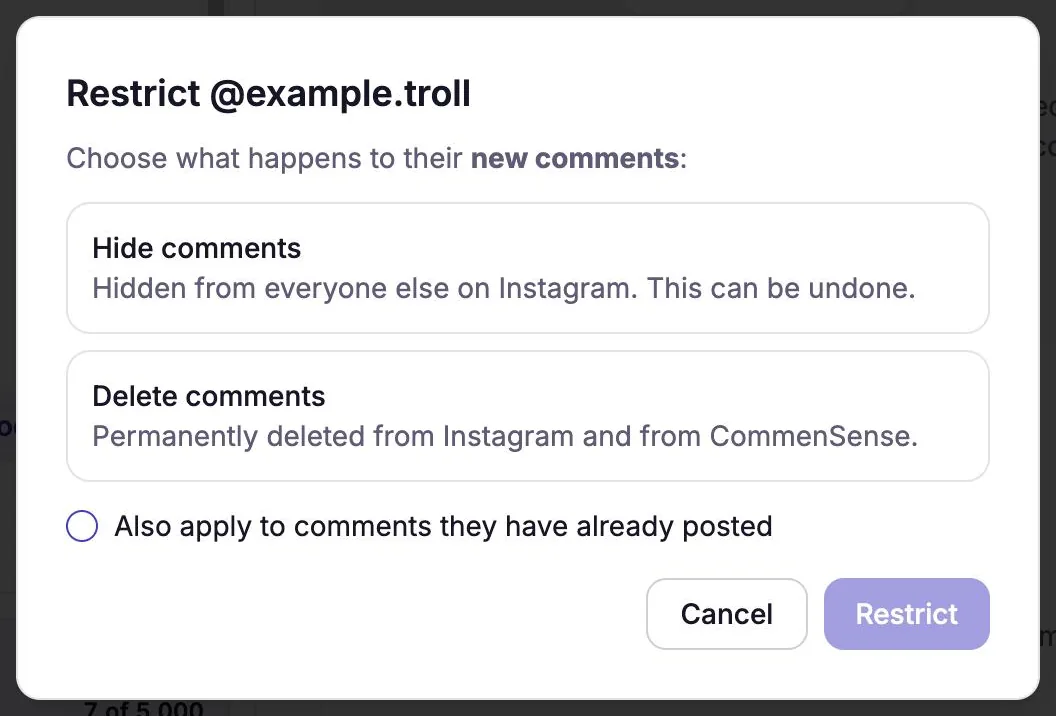
Choose what happens to their new comments.
Restricting people is included in the Pro and Business plans. Comments from a restricted person also skip your automations, so they won't get your DMs.
To undo it, remove them from the list. That stops future hiding or deleting, but comments that were already deleted don't come back.
What about blocking?
Blocking is done in Instagram, not CommenSense. If you only want to stop someone commenting, Instagram's "Block comments from" setting does that while still letting them see your posts. Their previous comments aren't removed (Instagram help). For a wave of comments from many accounts at once, Instagram's Limits hides comments from groups such as recent followers, for up to four weeks at a time (Instagram help).
Quick guide
| Situation | Best choice |
|---|---|
| Spam, links or rude comments arriving regularly | Hide automatically with rules |
| A negative comment you want to answer privately first | Hide |
| A scam link, threat or someone's personal details | Delete |
| A pile of spam on one post | Hide or delete them together in Bulk actions |
| The same person, again and again | Restrict (hide or delete) |
| A sudden flood from many new accounts | Instagram's Limits |
Related guides
How to hide Instagram comments automatically
Hide spam, links, swearing and your own banned words on every Instagram post automatically with CommenSense, and know exactly what gets hidden.
Updated
Instagram Hidden Words vs CommenSense: what each one does
What Instagram's built-in comment filters already do, what CommenSense adds, and when Instagram's own tools are all you need.
Updated