
How to hide Instagram comments automatically
Comment moderationUpdated By Team CommenSense
On this page
- How do I turn on automatic hiding?
- What does each rule hide?
- How do I hide comments with my own words?
- Which comments does CommenSense check?
- What happens to a hidden comment?
- Can one post have different rules?
- What happens when I run out of comment scans?
- How do I see what was hidden?
- Do I still need Instagram's own filters?
Instagram already filters some offensive words for you. CommenSense adds rules for the comments those filters miss, such as links, spam, negative remarks and comments with no words at all, and it applies them to every post on your account at once. This guide shows you how to turn them on and what each one does.
How do I turn on automatic hiding?
In the left sidebar, under Protect, open Comment moderation.
The page opens on the Hide automatically tab. The settings here apply to every post on the Instagram account that's selected at the top of the sidebar.
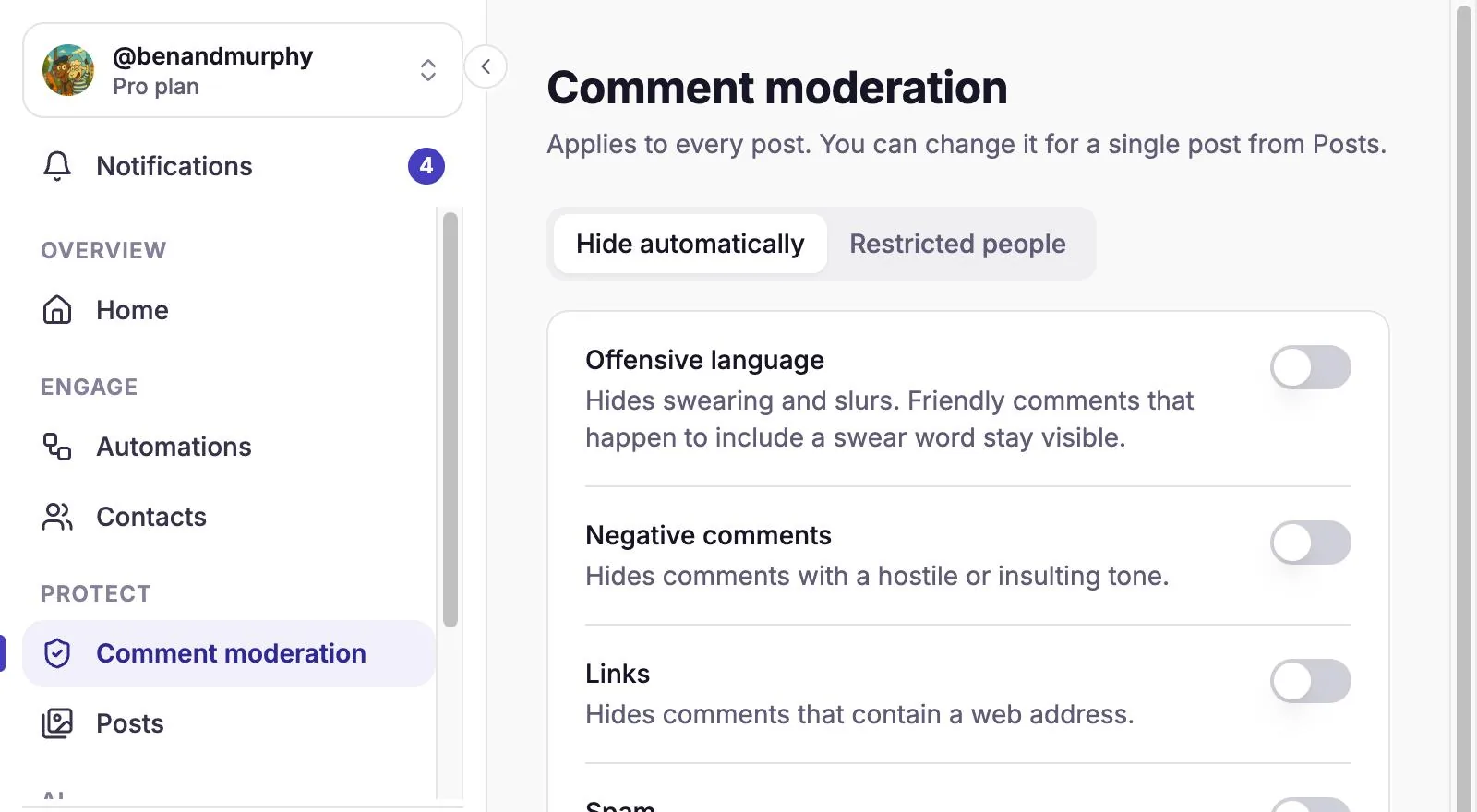
Comment moderation, on the Hide automatically tab. Switch on each kind of comment you want hidden.
Each switch is one rule. Turn on as many as you like. The next section explains exactly what each rule catches.
Select Save changes.
As soon as you change a switch, a bar appears at the bottom with Save changes and Discard. Nothing changes until you save.
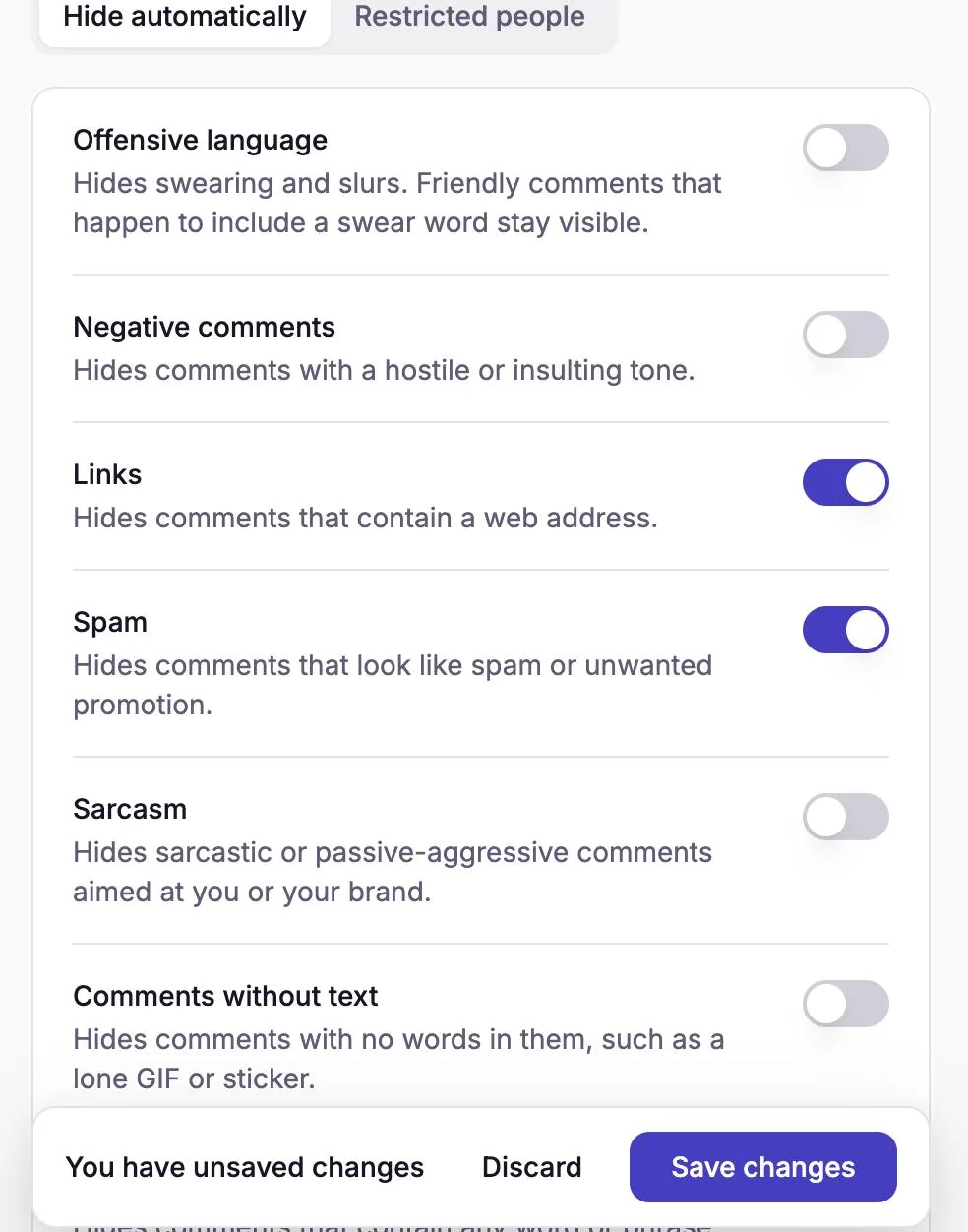
Links and Spam switched on, not yet saved.
That's it. New comments that match a rule are hidden as they arrive.
What does each rule hide?
| Rule | What it hides | Uses comment scans? |
|---|---|---|
| Offensive language | Swearing and slurs. A friendly comment that happens to include a swear word, like an excited compliment, stays visible. | Yes |
| Negative comments | Comments with a hostile or insulting tone. | Yes |
| Links | Comments that contain a web address or link. | Yes |
| Spam | Comments that look like spam or unwanted promotion. | Yes |
| Sarcasm | Sarcastic or passive-aggressive comments aimed at you or your brand. | Yes |
| Comments without text | Comments with no words in them, such as a lone GIF or sticker. | Yes, but it keeps working when your scans run out |
| Your keywords | Comments that contain any word or phrase on your list. | No |
The first five rules rely on CommenSense's AI reading the comment, so they can occasionally miss a comment or catch one you'd have allowed. Your keyword list is exact: it always does what the list says.
How do I hide comments with my own words?
On the Hide automatically tab, switch on Your keywords.
Type a word or phrase in the Add a word or phrase box and select Add.
Pressing Enter works too. Repeat for each word or phrase. To remove one, select the × next to it.
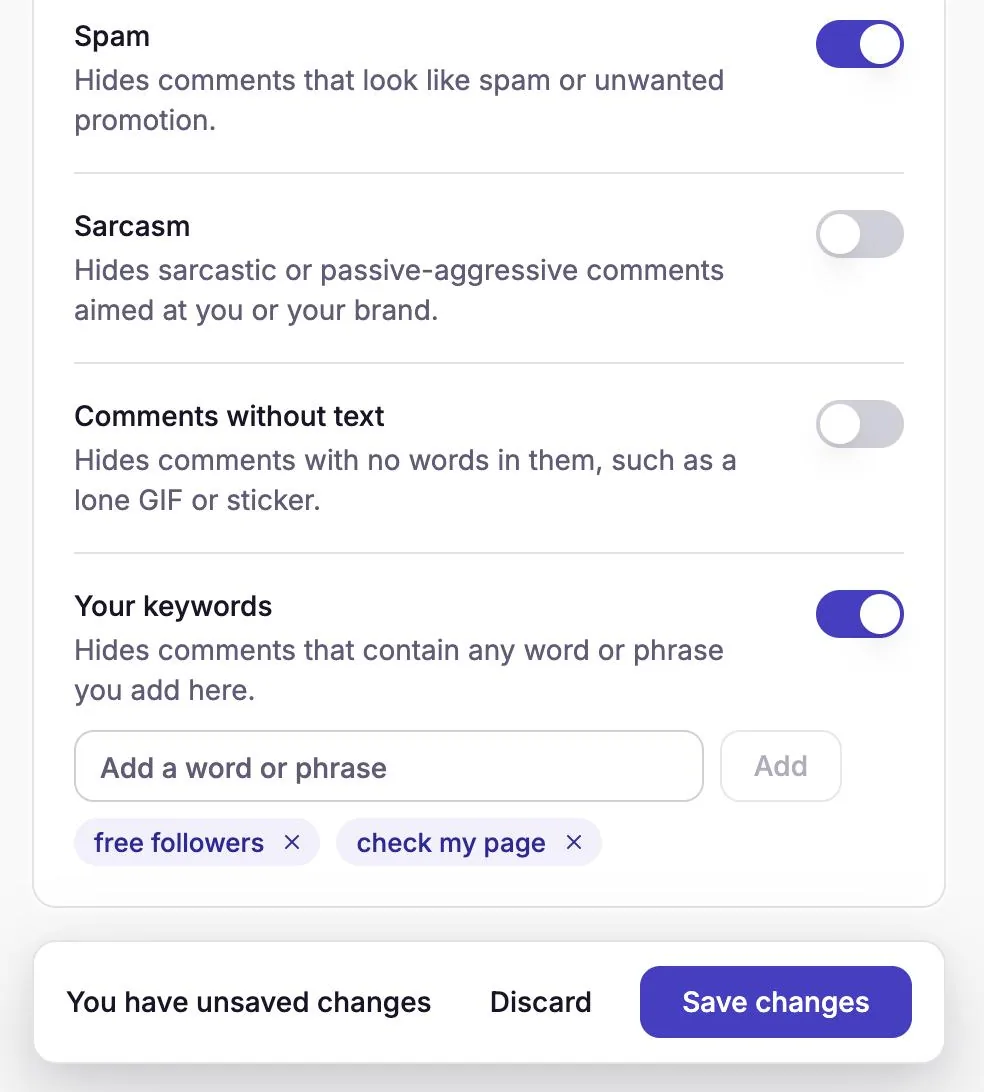
Two phrases added to Your keywords. Select Save changes.
Which comments does CommenSense check?
CommenSense checks new comments that people leave on your posts, from the moment you save your rules. It does not check:
- Comments that were already there. Turning a rule on doesn't go back through older comments. To clean those up, use Posts, then the Bulk actions tab (on the Basic plan and above), or hide them in Instagram.
- Replies inside a comment thread. Only top-level comments are checked.
- Your own comments, from the Instagram account itself.
What happens to a hidden comment?
CommenSense uses Instagram's own "hide" action, so a hidden comment behaves exactly as if you'd hidden it yourself in the Instagram app. According to Instagram's help page on hiding comments:
- The person who wrote it can still see it, and Instagram doesn't tell them it was hidden.
- Other people don't see it unless they choose to view hidden comments.
- It still counts towards the post's comment total.
- You can unhide it in the Instagram app.
CommenSense can't unhide a comment for you. If a rule hid something you want to keep, unhide it in Instagram, and consider turning that rule off or changing your keywords.
Can one post have different rules?
Yes. You might want stricter rules on a giveaway post, for example.
In the left sidebar, open Posts, select Choose a post and pick the post.
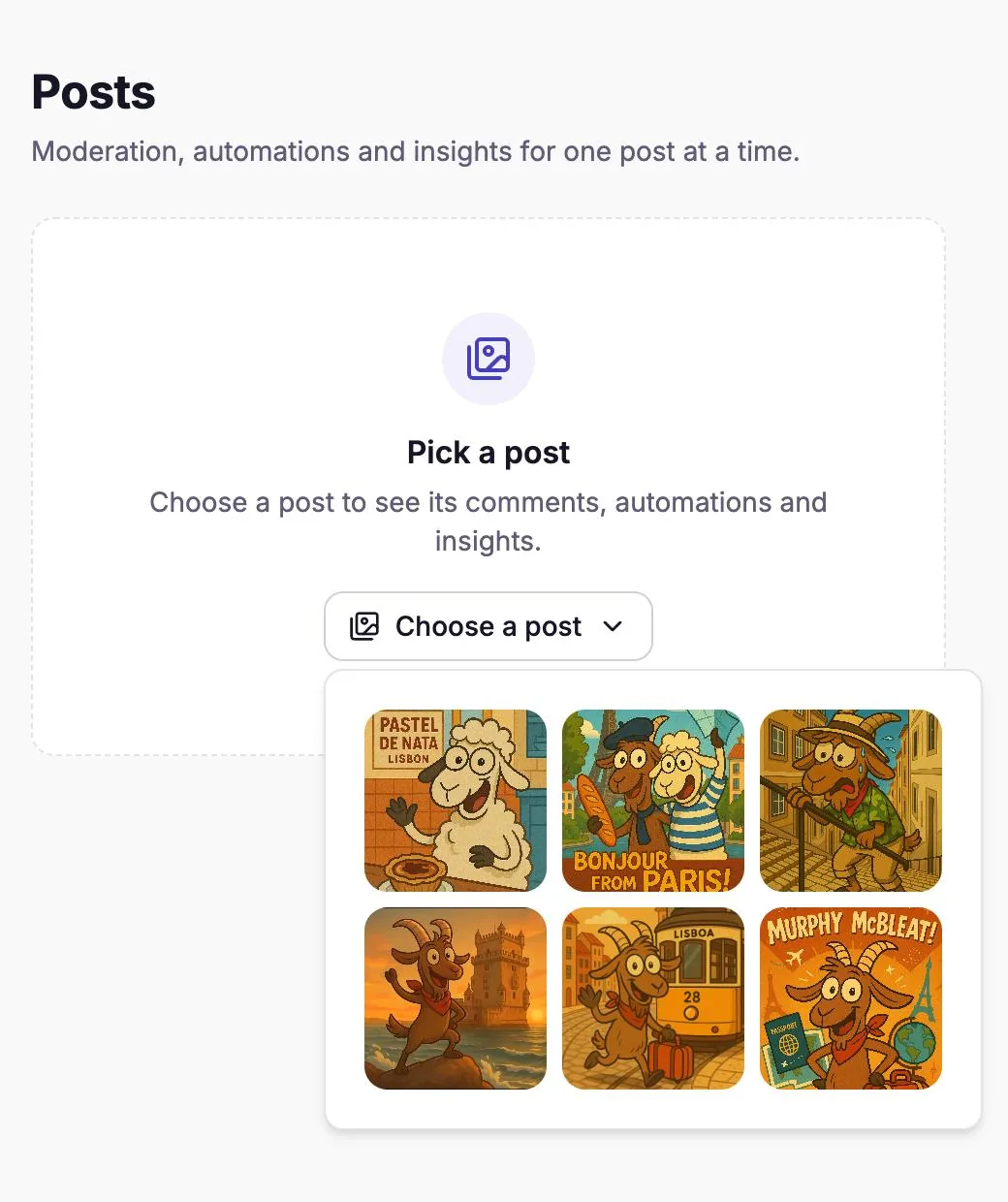
Pick the post you want to change. Stay on the Moderation tab.
A note at the top says the post follows your account-wide settings. Change any switch and select Save changes to give this post its own settings.
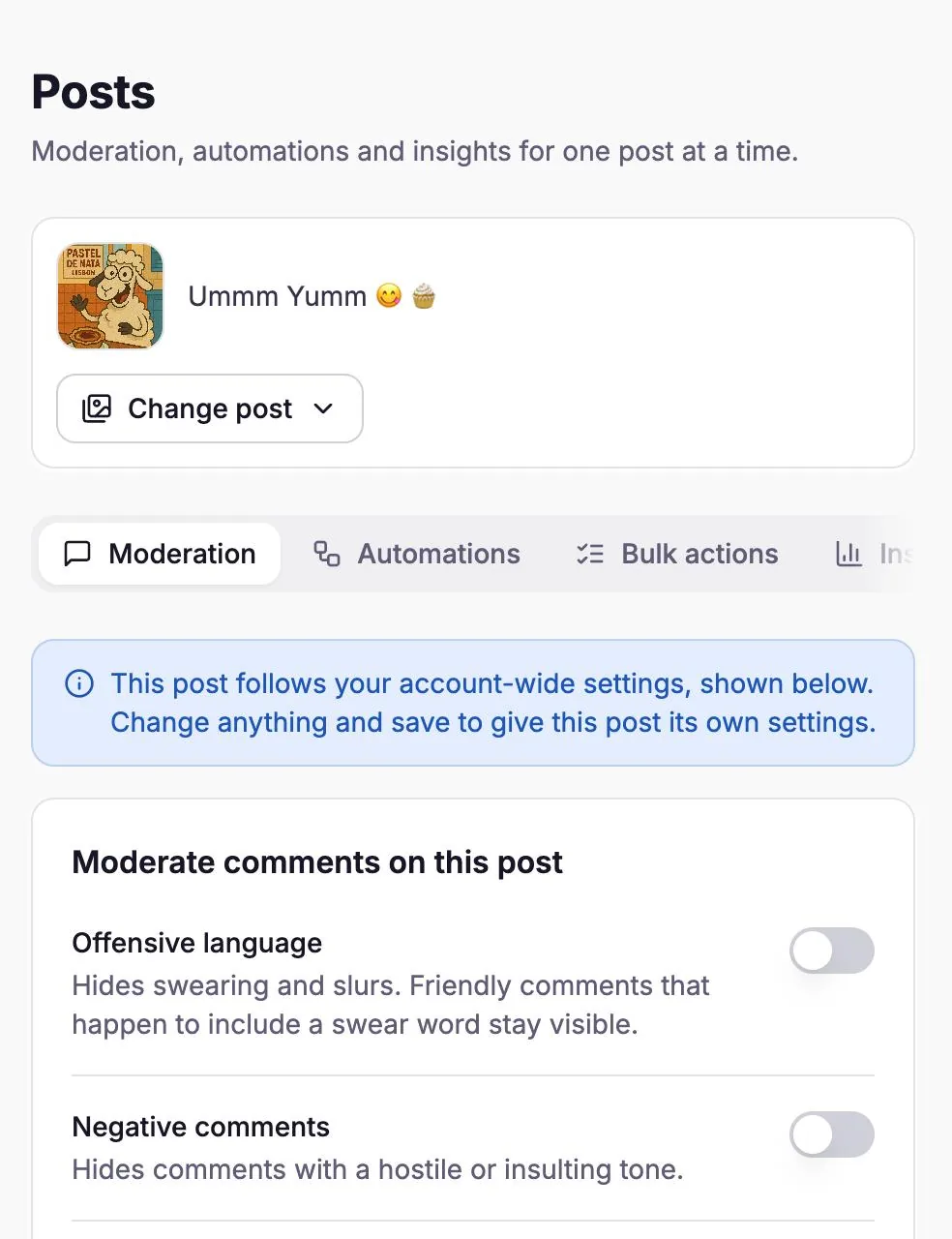
A post that still follows the account-wide rules.
Once a post has its own settings, they replace the account-wide ones for that post. They aren't added together: any rule you leave off on the post is off for that post, even if it's on for the account. To go back, open the post's Moderation tab again and select Use account settings.
What happens when I run out of comment scans?
The five AI rules (Offensive language, Negative comments, Links, Spam and Sarcasm) pause until your scans reset. Your keywords and Comments without text keep working. Home shows a "Comment scans used up" message when this happens, and Plan usage on Home shows how many scans you've used and the date they reset.
How do I see what was hidden?
- Home, on the Activity tab, shows how many comments CommenSense hid in the last 30 days.
- Posts, then a post's Insights tab, shows how many of that post's comments were hidden.
- On the Basic plan and above, Posts, then Bulk actions, lists the post's comments. Hidden ones have a Hidden label, and the Category filter has a Hidden option to show only those.
Do I still need Instagram's own filters?
You can use both. Instagram's built-in Hide unwanted comments setting is on by default and hides common offensive words, and its Hidden words list hides words you choose (Instagram help). CommenSense works alongside them, adds rules Instagram doesn't list as separate settings, such as links, negative tone, sarcasm and comments with no words, and lets you keep different rules for individual posts.
Related guides
Hide, delete or restrict? What to do with a bad comment on Instagram
When to hide a comment, when to delete it, and when to restrict the person, what each one does on Instagram, and how to do each in CommenSense.
Updated
Instagram Hidden Words vs CommenSense: what each one does
What Instagram's built-in comment filters already do, what CommenSense adds, and when Instagram's own tools are all you need.
Updated
How keywords work in CommenSense (and how to choose good ones)
Why a keyword can match the wrong comment, how CommenSense matches keywords in automations and hide rules, and how to pick ones that work.
Updated