
How to send an automatic DM when someone comments on your Instagram post
Comment replies & DMsUpdated By Team CommenSense
On this page
This is how creators run "comment GUIDE and I'll send you the link" posts without answering hundreds of comments by hand. This guide walks through the three steps of the setup, what the commenter actually receives, and the limits worth knowing before you announce the post.
How do I set up a Comment to DM automation?
In the left sidebar, under Engage, open Automations and select New automation.
CommenSense asks where the automation should run.
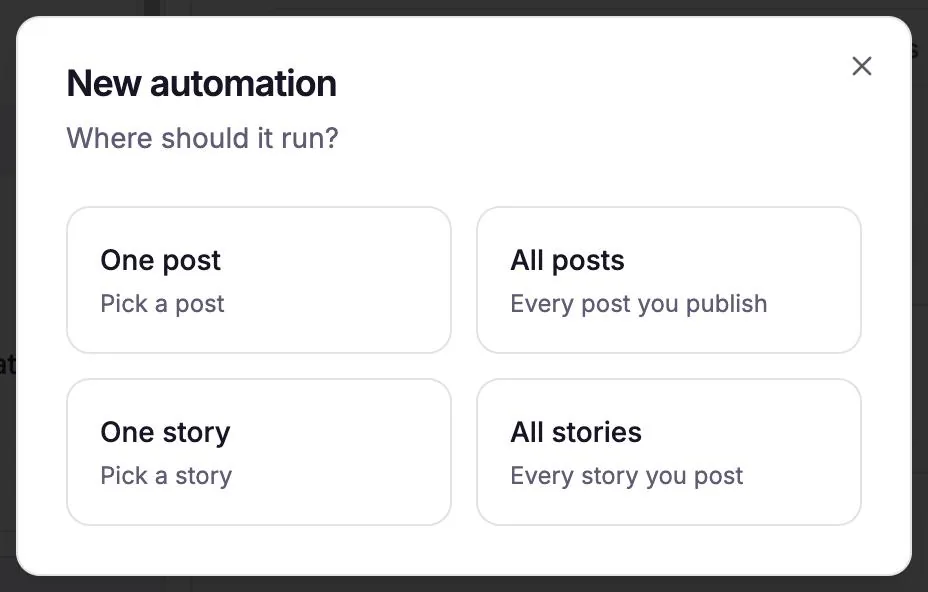
Choose where the automation runs. Choose One post and pick the post, or choose All posts.
One post is the usual choice for a giveaway or a "comment for the link" post. All posts runs on every post you publish, including future ones. (One story and All stories are for replies to your stories, which work the same way.)
Already looking at the post? Open Posts, pick the post, go to its Automations tab and select New automation there. It's set to that post automatically.
On the Basics step, give it a name and set What it does to Comment to DM.
The name is only for you, so pick one you'll recognise in the list later, such as "Free guide DMs".
Under Keywords, type each word people should comment and press Enter.
You can add up to 15. A comment triggers the automation if it contains any of them, ignoring capital letters. Or switch on Run on every comment to message everyone who comments, whatever they write. Then select Next.
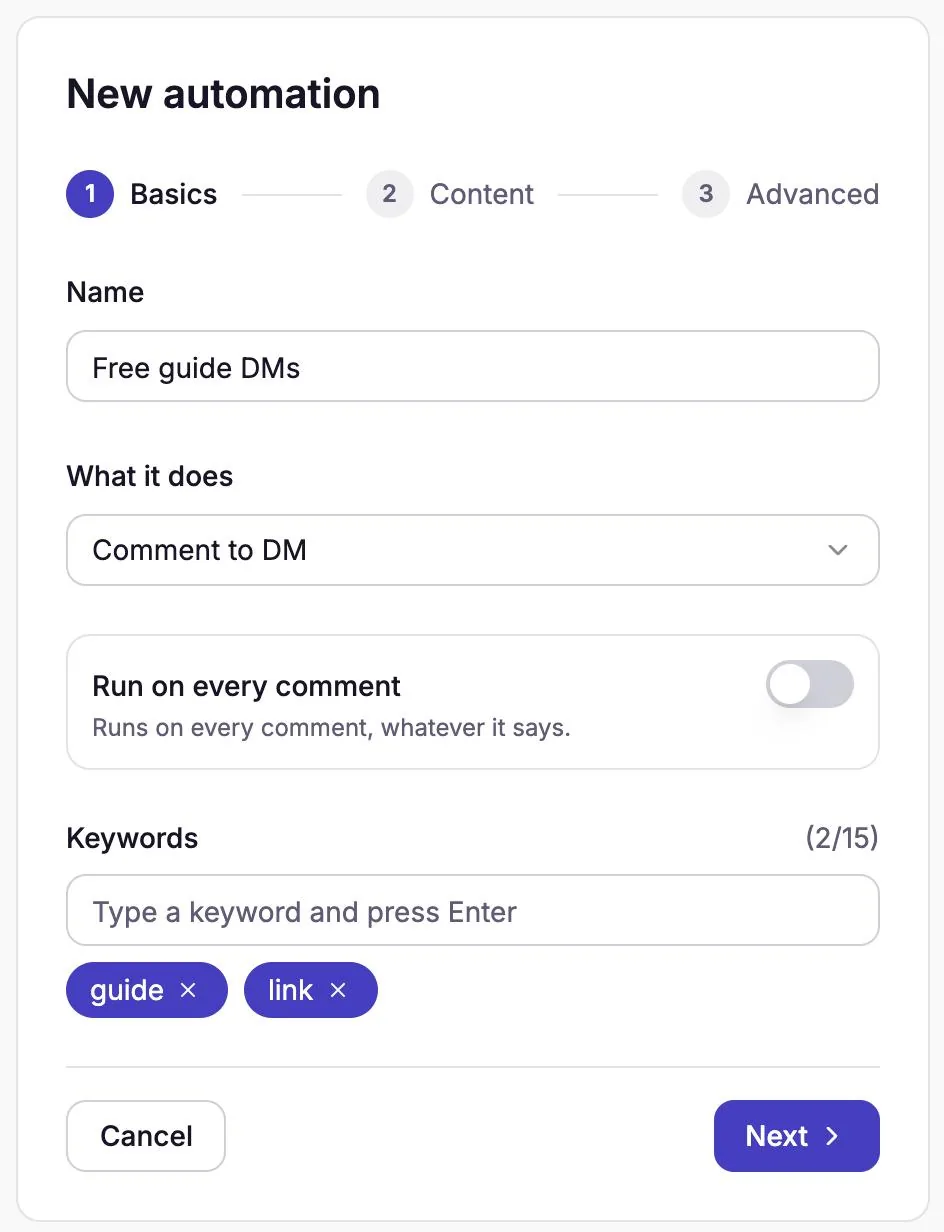
Basics: a name, Comment to DM, and two keywords. Keywords match inside longer words too, so short ones can fire on comments you didn't mean. How keywords work explains how to choose them.
On the Content step, choose the DM type and write the message.
There are three kinds of DM. Only the one you select is sent.
Text: a plain message, up to 220 characters. Select Add another message to write a few versions; one is picked at random each time.
Buttons: a message with up to 3 link buttons, such as "Get the guide". CommenSense counts how many times the buttons are opened, which plain text links don't give you.
Picture + buttons: an image card with a title and up to 3 link buttons. The image must be a PNG or JPEG of up to 8 MB.
To greet people by name, select the { } button. It adds
{{username}}, which becomes their @username when the message is sent.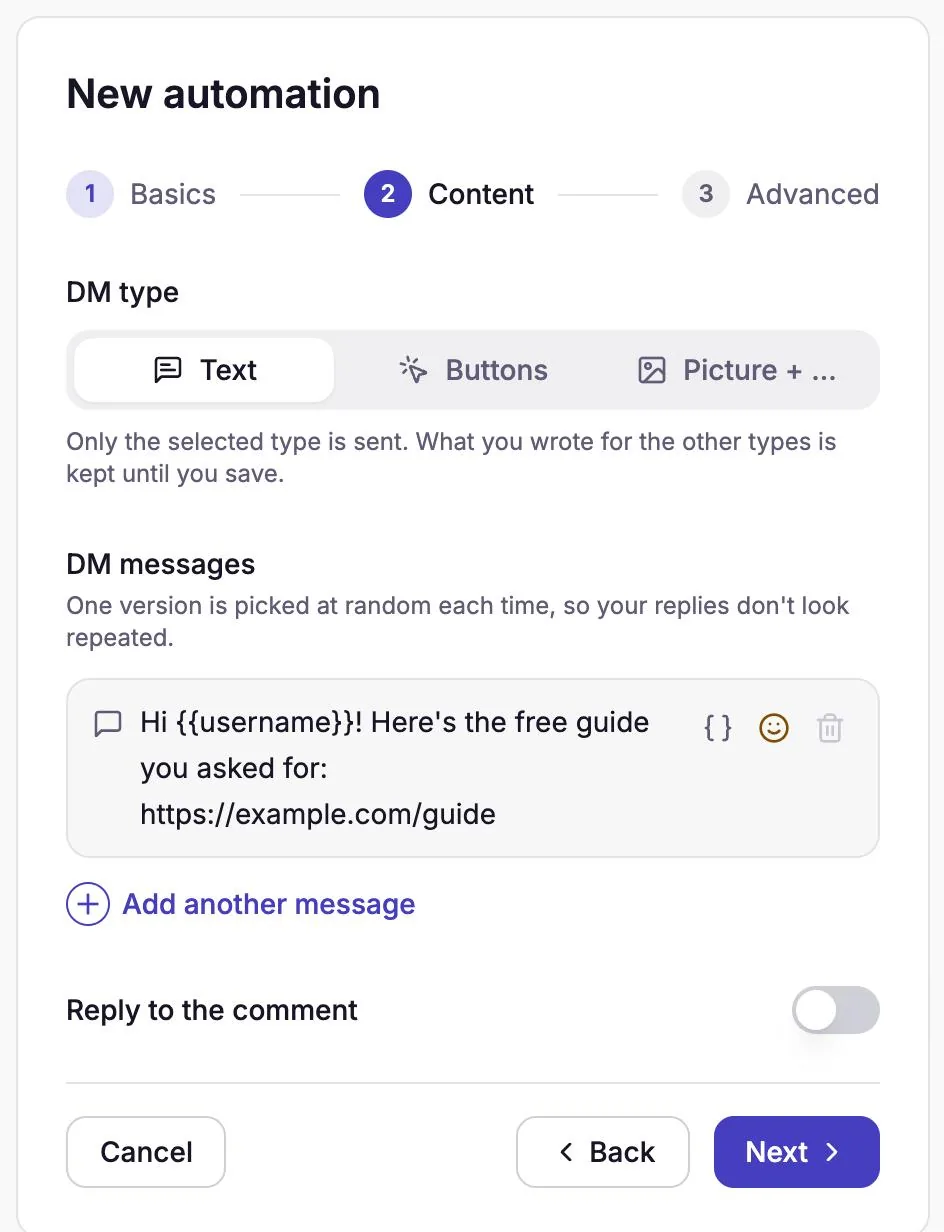
Content: a Text DM with the commenter's username and a link. Optional: switch on Reply to the comment to answer publicly as well.
CommenSense then replies under the person's comment, so other people can see they were answered. It comes with two replies already written; you need at least two versions so the replies don't all look the same. The public reply is posted only once your first message has actually reached them.
Reply limit per post sets the most public replies CommenSense will post on one post (100, 200, 400 or 800). After that, people still get the DM, just without the public reply.
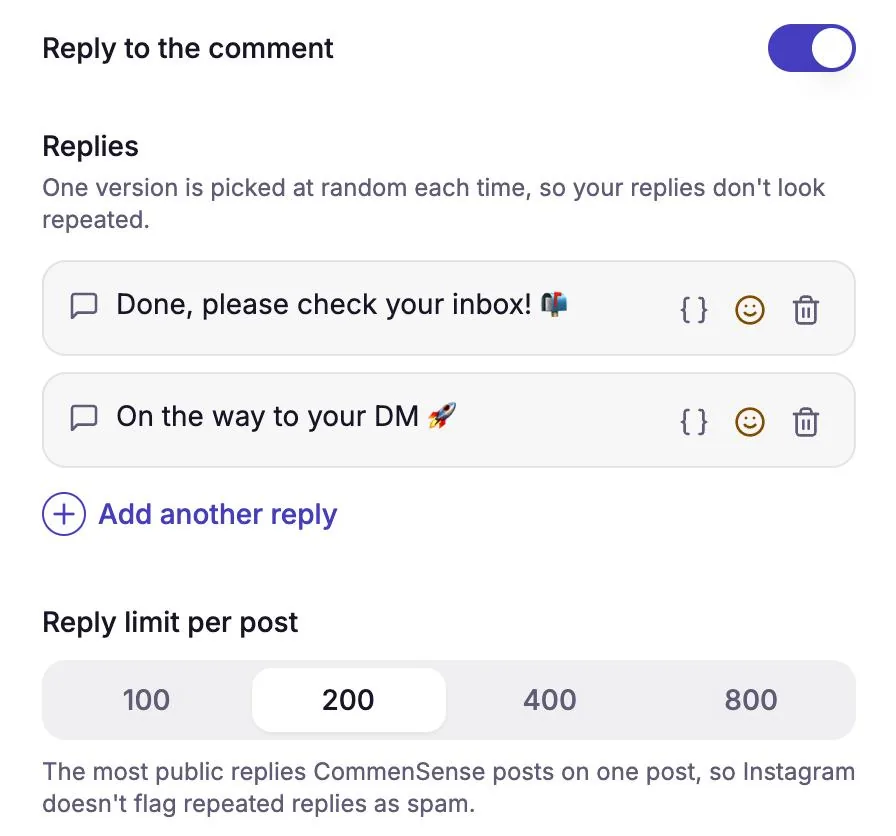
Public replies, with a limit per post. Select Next.
On the Advanced step, add any extra steps you want, then select Create automation.
All three are optional. Leave them off for the simplest flow: comment in, DM out.
Send an opening message first: sends a short message with a button. Your DM goes out only when they tap it.
Ask them to follow you first: checks that they follow you before sending the DM, and asks them to follow if they don't.
Collect an email or phone number: asks for their email or phone number before sending the DM, and saves it to Contacts. Basic plan and higher.
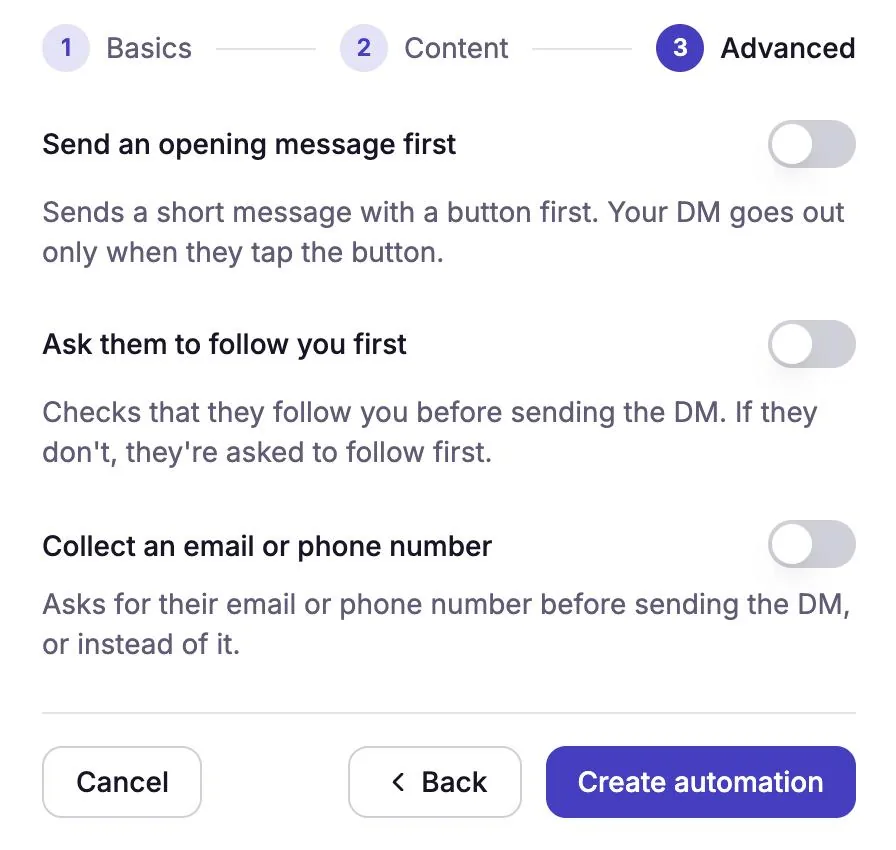
Advanced: optional steps before the DM.
The automation is live as soon as you create it. It appears in the Automations list with its status switch on.
How do I check what the commenter will see?
While you edit, the Preview panel shows the post, the comment with your public reply, and the DM. On a wide screen it's next to the form; on a narrower one it's below it. Switch between Post, Comment and DM at the bottom of the panel.
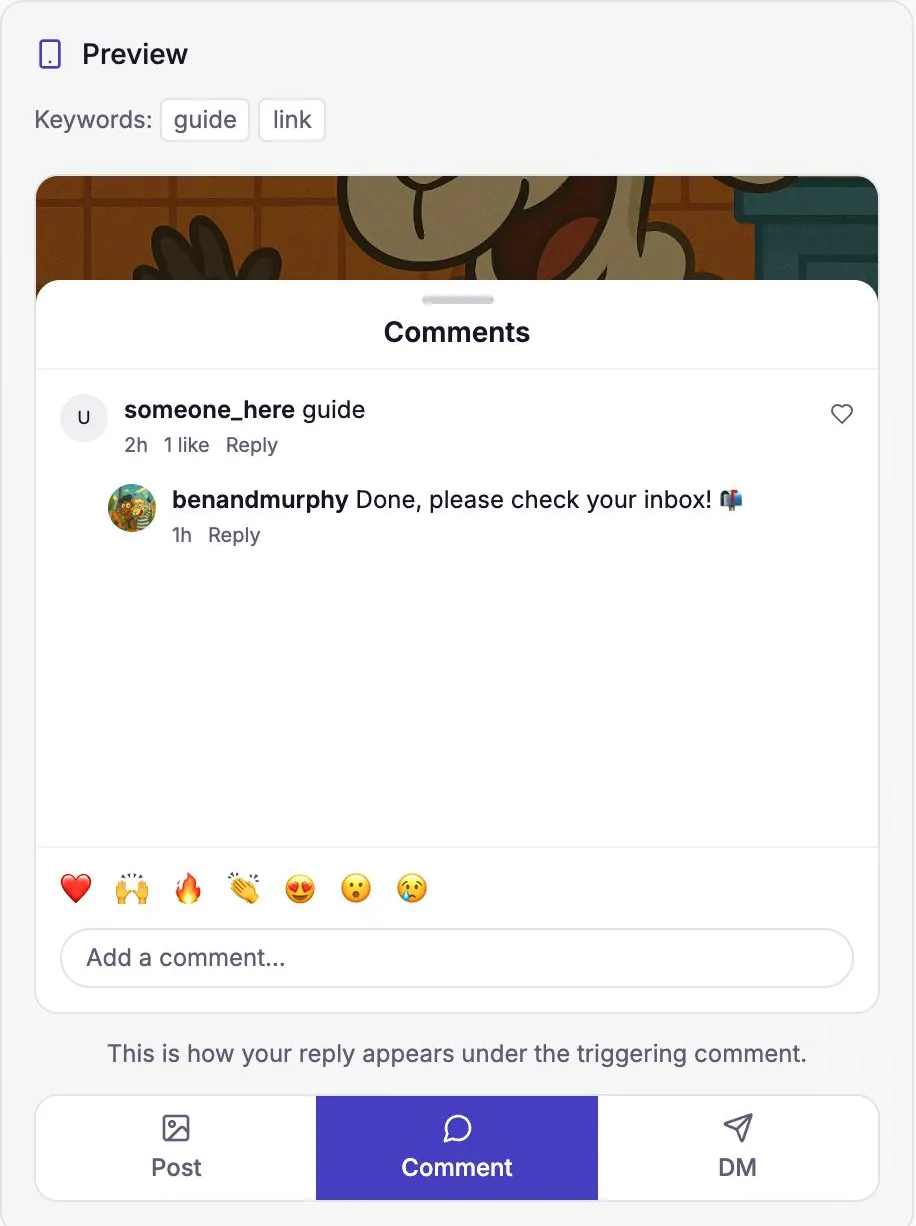
To test it for real, comment one of your keywords on the post from a different Instagram account. Comments made by your own account are ignored, so testing from the account you connected never triggers anything.
What does the commenter receive?
- A DM from your account. Instagram calls this first message a "private reply" to their comment. According to Meta's documentation, it lands in their main inbox if they follow you, and in their message requests if they don't.
- Your public reply under their comment, if you switched on Reply to the comment.
- On the Free plan, a short "Sent using commensense.in" line at the end of the DM. Paid plans don't add it.
Each comment gets the DM at most once per automation, even if the comment is processed again. If the same person comments again later, that new comment counts on its own.
Which comments don't trigger the automation?
- Comments that don't contain any of your keywords (unless Run on every comment is on).
- Replies inside a comment thread. Only top-level comments trigger automations.
- Comments with no text at all, such as a lone GIF or sticker.
- Comments from your own account.
- Comments made before you created the automation. On the Pro and Business plans, a one-post automation can be run on the last 7 days of comments with Re-run on past comments, from the More menu in the Automations list.
- Comments from people on your Restricted people list.
What if two automations match the same comment?
Only one automation of each type runs on a comment, so nobody gets two DMs for one comment. CommenSense picks it in this order:
- An automation for this post whose keyword matched.
- An automation for this post set to run on every comment.
- An All posts automation whose keyword matched.
- An All posts automation set to run on every comment.
If two automations are equally specific, the one you edited most recently wins. A Reply to comment automation and a Comment to DM automation are different types, so both can run on the same comment.
How do I pause or change an automation?
In Automations, each automation has a status switch: Live or Inactive. Switch it off to pause it without losing anything. Select the pencil to edit it, or the bin to delete it.
Common mistakes
- Testing from your own account. Use a second account, or ask a friend.
- Keywords that are too short. "hi" also matches "this" and "shipping". Use distinctive words.
- Asking people to comment a word you didn't add. If your caption says "comment GUIDE", make sure guide is in the keywords. Capital letters don't matter.
- Promising an instant reply on a giveaway. On a very busy post, say the DM can take a few minutes.
If it still isn't working, go through why an automation didn't reply or send a DM.
Related guides
How keywords work in CommenSense (and how to choose good ones)
Why a keyword can match the wrong comment, how CommenSense matches keywords in automations and hide rules, and how to pick ones that work.
Updated
Troubleshooting
Why didn't my automation reply or send a DM?
Work out why a CommenSense automation skipped a comment, from keyword matches and status to follow checks, plan limits and Instagram delays.
Updated
Instagram's rules for automated replies and DMs, explained
How many automated DMs Instagram allows, the 7-day and 24-hour windows, and which limits are Meta's and which are CommenSense's own settings.
Updated