
Instagram connection errors in CommenSense, and how to fix them
TroubleshootingUpdated By Team CommenSense
On this page
Connection problems come at two moments: while you're connecting an account, and later, when Instagram stops accepting a connection that used to work. This guide covers both. If you haven't connected yet, start with how to connect Instagram to CommenSense.
What does each error mean while connecting?
After you sign in on Instagram's page, you come back to CommenSense, which shows one of these:
| What you see | What it means | What to do |
|---|---|---|
| You didn't finish connecting | You cancelled on Instagram, or closed its page. Nothing changed. | Select Try again. |
| One permission was switched off (or two, three…) | A permission was turned off on Instagram's page. The screen names which ones and what stops working without them. | Select Connect again and leave every permission on. |
| @yourname belongs to another CommenSense account | An Instagram account can be connected to one CommenSense account at a time. It's already connected to another one, possibly yours under a different email. | Sign in to that CommenSense account and disconnect it there, or select Connect a different account. |
| You're using both accounts on Pro (or similar) | Your plan's limit on Instagram accounts is used up. | Select Compare plans, or Manage accounts to disconnect one you no longer use. |
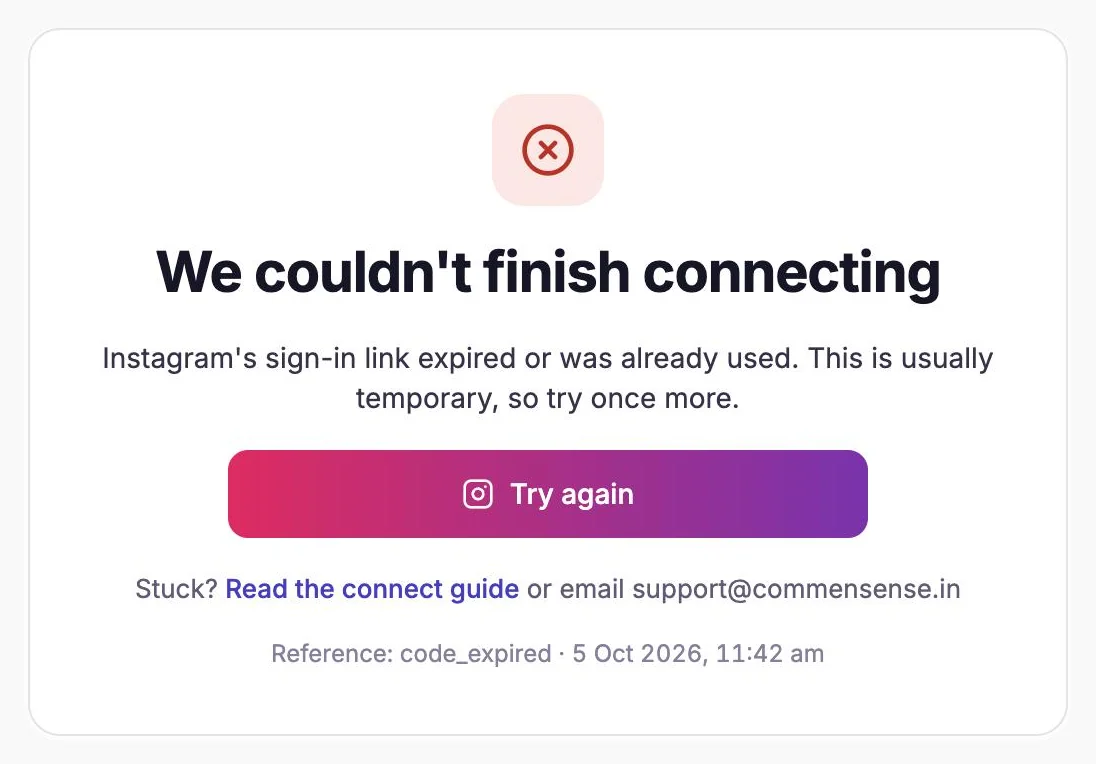
| We couldn't finish connecting | Something went wrong on the way back from Instagram. The next section explains the reasons. | Usually Try again. |
What does "We couldn't finish connecting" mean?
This screen says what went wrong in one line, and shows a Reference at the bottom, such as code_expired, with the date and time.
| Reference | What happened | What to do |
|---|---|---|
| code_expired | Instagram's sign-in link expired or was already used. This happens if you reload the page you returned to, connect in two tabs at once, or take a long time to come back from Instagram. | Try again, in one tab. |
| no_code | Instagram sent you back without the sign-in details. | Try again. |
| instagram_error | Instagram refused the connection or sent an answer CommenSense couldn't read. | Try again. If it repeats, check you're signing in to a Business or Creator account. |
| request_failed | Your browser couldn't reach CommenSense, often a dropped internet connection. | Check your connection, then Try again. |
| cap_check_failed | CommenSense couldn't check your plan's account limit just then. | Wait a moment, then Try again. |
| save_failed | Instagram agreed, but CommenSense couldn't save the connection. | Try again. |
| unexpected | Something else went wrong. | Try again, then contact support if it repeats. |
Instagram can also send back an error of its own. In that case the screen shows Instagram's message, and the reference is Instagram's code.
Why does an account need reconnecting later?
When you connect, Instagram gives CommenSense a key that lets it act for your account. Instagram's keys last 60 days and can be renewed before then (Meta: Instagram Platform). CommenSense renews yours every 10 days, including for paused accounts, so it shouldn't run out.
An account needs reconnecting when Instagram stops accepting that key anyway. That can happen if:
- you remove CommenSense from the apps connected to your Instagram account;
- Instagram ends the connection for its own reasons, such as a security check on your account.
When this happens, CommenSense marks the account and tells you in three places:
- Home shows "@yourname needs reconnecting" under Needs your attention.
- A notification says the connection has expired.
- Settings shows Reconnect next to the account.
Until you reconnect, CommenSense can't act for that account: comments aren't hidden, automations don't reply or send DMs, and scheduled posts fail with "Your Instagram connection has expired".
How do I reconnect?
Open My account at the bottom of the sidebar, then Settings.
Make sure the account that needs reconnecting is the one that's open.
Use the account switcher at the top of the sidebar if it isn't.
Under What CommenSense can do, select Reconnect, then Continue to Instagram.
Sign in on Instagram's page, keep every permission switched on and continue.
You come back to a screen that says the account was reconnected, and you're taken back to Settings. Your automations, contacts and settings stay exactly as they were.
How do I check the connection is working?
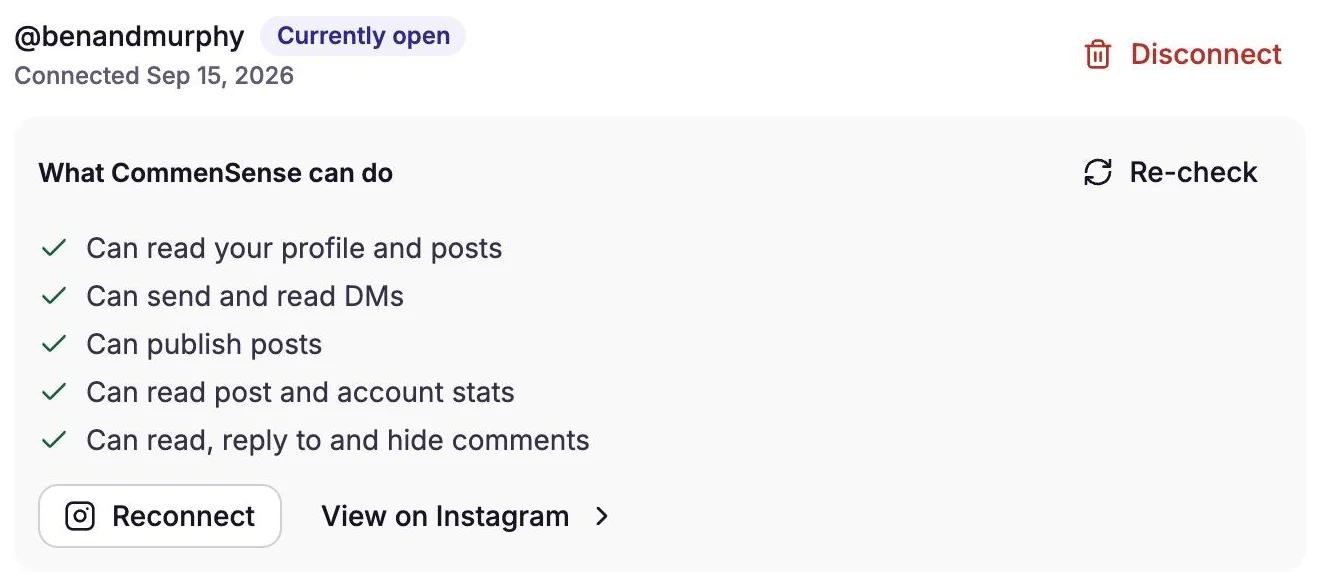
In Settings, under the account that's open, What CommenSense can do lists what the connection allows. Select Re-check to ask Instagram again.
| Re-check says | What it means |
|---|---|
| Connection is working | Instagram still accepts the connection. Nothing to do. |
| Reconnect needed | Instagram no longer recognises the connection. Reconnect. |
| Some permissions may be missing | A permission wasn't granted when you last connected. It names which. Reconnect and leave it on. |
| Couldn't check the connection | The check itself failed, so the answer is unknown. Try again in a moment. |
Still stuck?
Email [email protected]. Say which Instagram account you were connecting, and include the Reference and time from the error screen if there was one. That's enough for support to find exactly what happened.
Related guides
How to connect Instagram to CommenSense (and which accounts work)
Connect a Business or Creator Instagram account to CommenSense, no Facebook Page needed, and fix the usual connection problems.
Updated
Why didn't my automation reply or send a DM?
Work out why a CommenSense automation skipped a comment, from keyword matches and status to follow checks, plan limits and Instagram delays.
Updated
Paused, disconnected or deleted: what happens to your data in CommenSense
The difference between a paused Instagram account, disconnecting one and deleting your CommenSense account, what each keeps, and how to undo it.
Updated
Why aren't my Instagram comments being hidden?
A comment you expected CommenSense to hide is still showing? Check these eight things, from which comments are checked to post settings and scans.
Updated