
How to automatically hide or delete one person's Instagram comments
Comment moderationUpdated By Team CommenSense
On this page
- How do I restrict someone?
- What happens to comments they've already posted?
- What happens to their new comments?
- How does CommenSense recognise them?
- Can I restrict people straight from a post?
- How do I change or remove a restriction?
- What if I move to a lower plan?
- How is this different from Instagram's own Restrict and Block?
Hide rules are good at catching kinds of comments, such as spam or swearing. But sometimes the problem is one person: someone who leaves a nasty remark under every post, or a spam account that keeps coming back with new wording. Restricting deals with the person, whatever they write.
How do I restrict someone?
In the left sidebar, open Comment moderation and go to the Restricted people tab.
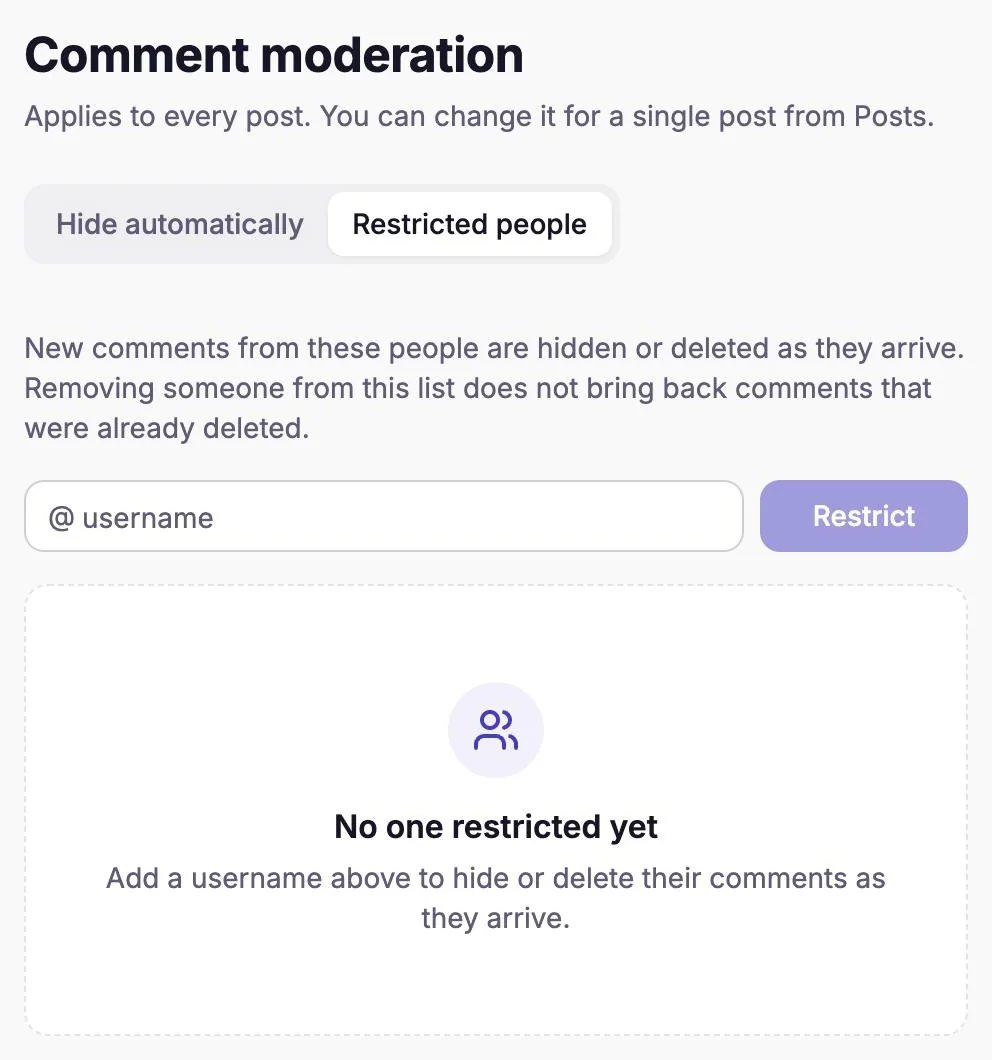
The Restricted people tab, before anyone is added. Type their username and select Restrict.
Leave out the @. Nothing changes yet: a window opens so you can choose what happens.
Choose Hide comments or Delete comments.
Hide comments: their comments are hidden from everyone else on Instagram. You can unhide one later in the Instagram app.
Delete comments: their comments are permanently deleted, from Instagram and from CommenSense.
Not sure? Choose hide. You can switch to delete later, but a deleted comment can't be brought back.
Optional: tick Also apply to comments they have already posted.
See the next section for exactly which comments this reaches.
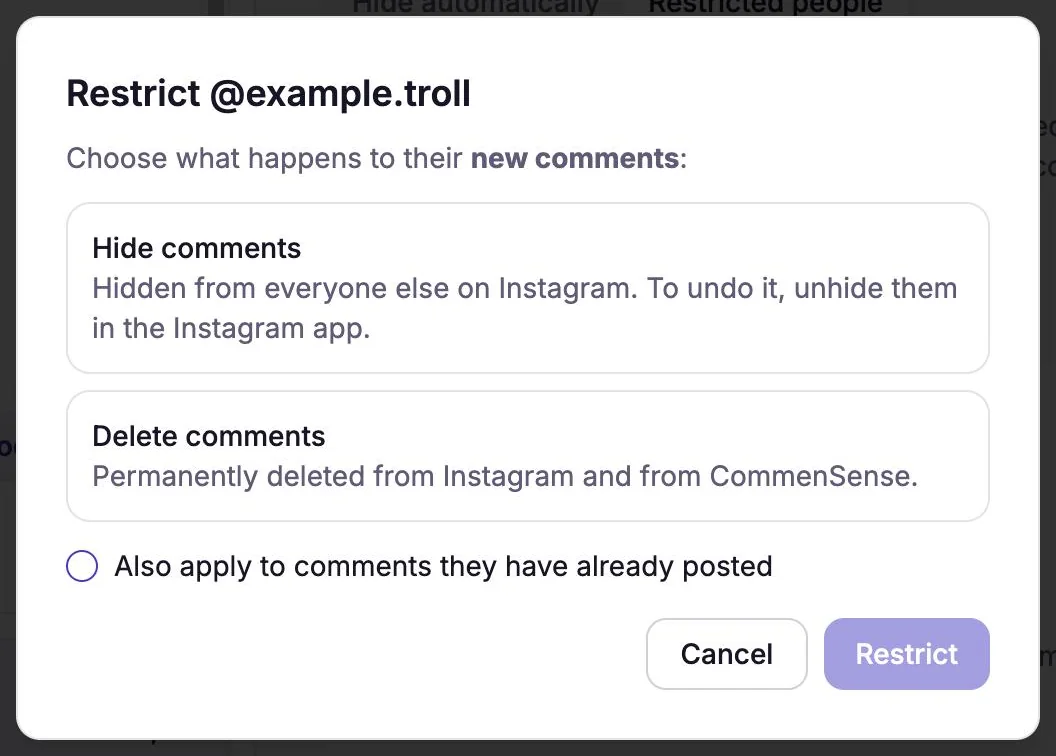
Choose what happens to their comments. The username here is made up. Select Restrict.
A message confirms it, for example "Their new comments will be hidden as they arrive." They're added to the list, with what happens to their comments and the date you restricted them.
What happens to comments they've already posted?
Only what you choose. Without the box ticked, nothing changes to their existing comments; only new ones are handled.
With Also apply to comments they have already posted ticked, CommenSense hides or deletes their earlier comments on every post of the account. It can only reach comments it already has: the ones posted since you connected Instagram, plus any you imported with Sync comments (Pro and Business). Comments already hidden are skipped.
This can take a while if they've commented a lot, so you can leave the page. When it's finished, a notification tells you how many earlier comments were hidden or deleted, and how many couldn't be.
What happens to their new comments?
As soon as they comment on any post of the account, CommenSense hides or deletes it. This covers:
- Every post, including ones you publish later.
- Replies inside comment threads, not only top-level comments. (Hide rules don't check replies, but restrictions do.)
Their comments also skip everything else CommenSense would do with a comment: they don't trigger your automations, so they don't get your DMs, and they aren't read by the AI, so they don't use up your comment scans.
How does CommenSense recognise them?
If they've commented on your posts before, CommenSense recognises them by their Instagram account, so the restriction keeps working even if they later change their username. If they haven't commented yet, it's saved by username. It then matches their comments by that username, so if they change it before commenting, the restriction won't catch them. Restrict the new username too.
Can I restrict people straight from a post?
Yes. Open Posts, pick the post, go to Bulk actions, tick one or more of their comments and select Restrict. The same choices appear. This is the quickest way when you've just spotted them in the comments.
How do I change or remove a restriction?
In the list on the Restricted people tab:
- Edit (the pencil): switch between hiding and deleting. Select Save changes.
- Remove (the bin): takes them off the list straight away, with no confirmation. Their new comments are no longer hidden or deleted. Comments that were already deleted don't come back, and hidden ones stay hidden until you unhide them in Instagram.
What if I move to a lower plan?
People you restricted before stay restricted, and you can still remove them. Adding new people or changing an existing restriction needs Pro or Business again.
How is this different from Instagram's own Restrict and Block?
| CommenSense Restricted people | Instagram Restrict | Instagram Block comments from | |
|---|---|---|---|
| Their new comments | Hidden or deleted automatically | Visible only to them until you approve one | Visible only to them |
| Their earlier comments | Optional: hidden or deleted too | Unchanged | Unchanged |
| Their messages to you | Unchanged | Moved to your message requests | Unchanged |
| Where you set it | CommenSense | Instagram app | Instagram app |
The Instagram columns come from Instagram's help pages on Restrict and blocking comments. You can use them together; for when to use each, see hide, delete or restrict?
Related guides
Hide, delete or restrict? What to do with a bad comment on Instagram
When to hide a comment, when to delete it, and when to restrict the person, what each one does on Instagram, and how to do each in CommenSense.
Updated
How to hide Instagram comments automatically
Hide spam, links, swearing and your own banned words on every Instagram post automatically with CommenSense, and know exactly what gets hidden.
Updated
Instagram Hidden Words vs CommenSense: what each one does
What Instagram's built-in comment filters already do, what CommenSense adds, and when Instagram's own tools are all you need.
Updated