
How to stop spam and bot comments on Instagram
Comment moderationUpdated By Team CommenSense
On this page
Spam comments come in a few shapes: bots posting the same line under every post ("Great content! DM us to collaborate"), accounts dropping links, and real people promoting their own page. No single setting catches all of them, so this guide starts with what Instagram gives you for free, then shows what to add in CommenSense.
What can I do in Instagram itself?
Start here, because these settings cost nothing and apply inside Instagram:
- Hidden words. Instagram hides comments with common offensive words by default, and you can add your own words, phrases and emojis (Instagram help). Adding the phrases spam bots use, such as "promote it on", works well.
- Limit interactions. During a spam wave you can temporarily hide new comments from accounts that don't follow you, or from people who followed you in the last week. Their comments stay hidden unless you approve them. It lasts up to four weeks at a time, and you can extend it. In the app: your profile, Menu, then Limit interactions under How others can interact with you (Instagram help).
- Who can comment. Under Comments in the same menu, you can allow comments only from people you follow, your followers, or both (Instagram help). This stops strangers' spam, but also strangers' genuine comments.
These are good blunt tools. Where they fall short is spam that doesn't contain a word you've listed, and the fact that limiting strangers also hides real customers who don't follow you yet.
How do I hide spam automatically in CommenSense?
In the left sidebar, under Protect, open Comment moderation.
The page opens on the Hide automatically tab. Its rules apply to every post on the selected account.
Switch on Spam and Links.
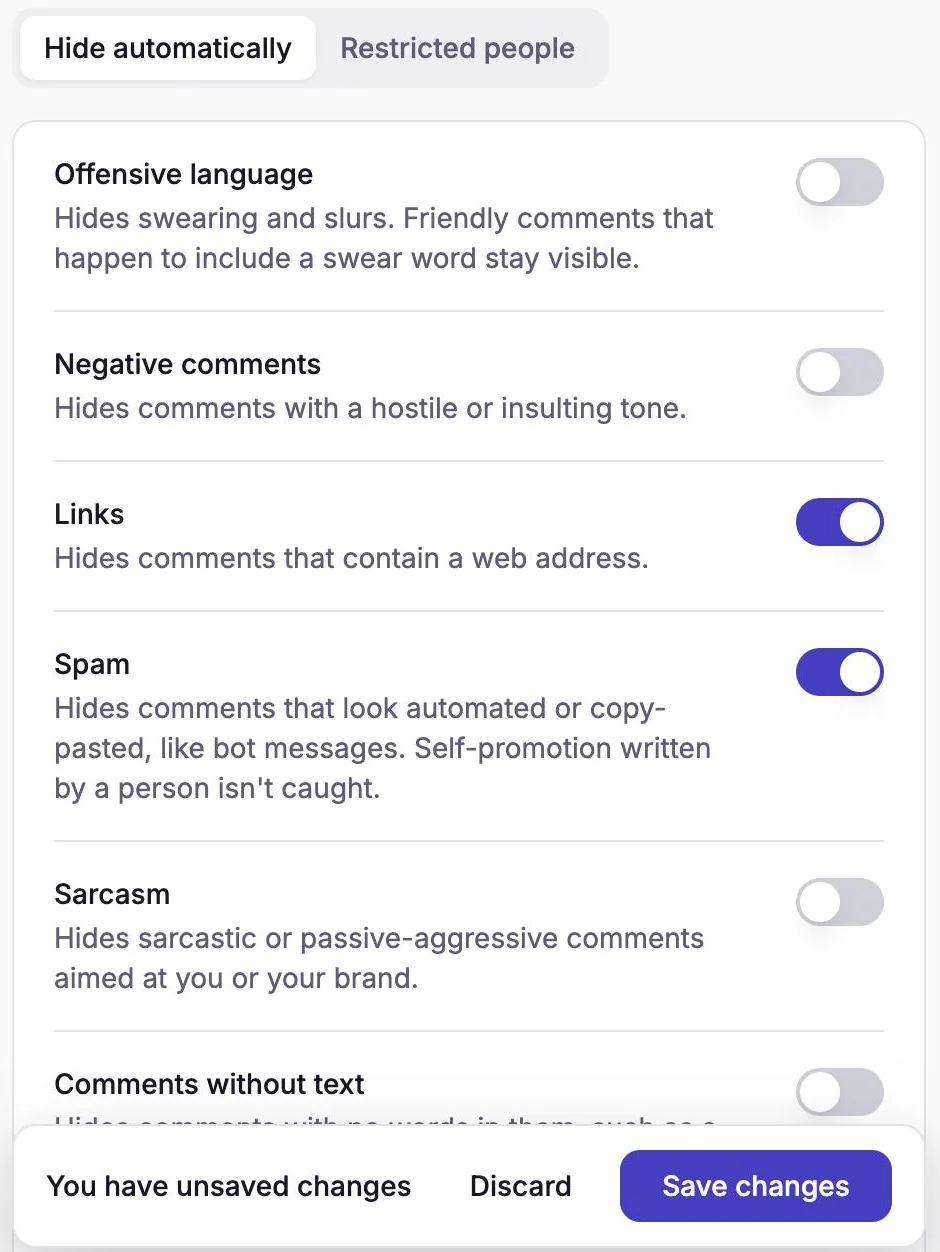
Links and Spam switched on, not yet saved. Switch on Your keywords and add the spam phrases you keep seeing.
Type a phrase in Add a word or phrase and select Add. Use whole phrases such as free followers or dm us to collab, not single words.
Select Save changes.
From then on, every new comment on your posts is checked, and spam that matches is hidden on Instagram as it arrives.
What does each rule catch?
| Rule | Catches | Misses |
|---|---|---|
| Spam | Comments that read as automated or templated, like the same compliment-plus-"DM us" line posted under many accounts. | A real person promoting their own page in their own words. |
| Links | Any comment with a web address, domain name or link-like text, whoever wrote it. | Spam that only says "check my page" with no link. |
| Your keywords | Any comment containing a phrase on your list, exactly. | Anything not on your list. |
Spam and Links use AI to read each comment, so they can occasionally miss one or catch one you'd have allowed. Your keywords never guesses. Together they cover most spam: bots through Spam, link drops through Links, and the rest through your list.
What if the same accounts keep coming back?
Restrict them. On the Comment moderation page, go to the Restricted people tab, add their username and choose Delete comments or Hide comments. Everything they post on any of your posts is then handled automatically, whatever it says. This is included in the Pro and Business plans. See how to hide or delete one person's comments.
Spam accounts often come and go with new usernames, so restricting works best for the few that keep returning, and the rules above handle the rest.
How do I remove spam that's already on a post?
Rules only check new comments, so clean up older spam by hand, many at a time:
Open Posts, pick the post, and go to the Bulk actions tab.
Open the Intent filter and tick Spam / Promo.
This finds self-promotion and link drops, including the ones written by real people. The Category filter's Spam and URLs options find bot-like comments and comments with links.
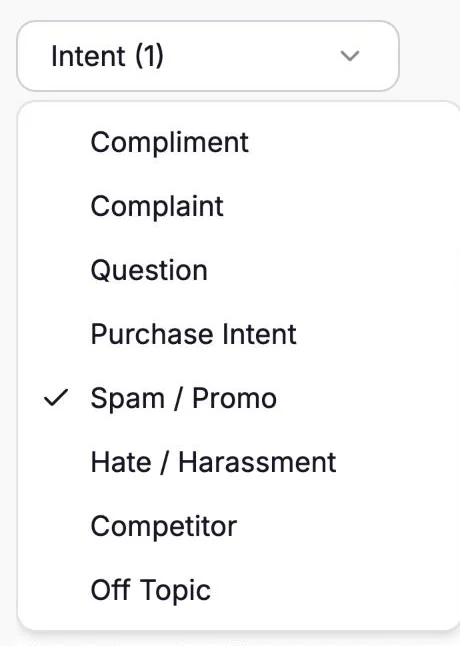
Filter a post's comments to Spam / Promo. Tick the comments, or Select all, then select Hide or Delete and confirm.
Read the list before you confirm. These labels come from CommenSense's AI, so check that nothing genuine is selected. Deleting can't be undone.
Bulk actions are included in Basic, Pro and Business. For the full walkthrough, see how to hide or delete many comments at once.
What doesn't this cover?
- Replies inside a thread. The hide rules check top-level comments only. Spam posted as a reply to someone else's comment isn't hidden automatically; you can still remove it from Bulk actions.
- Spam in your DMs. CommenSense doesn't filter messages. Instagram's Hidden words can filter message requests.
- Fake followers and likes. CommenSense works on comments only.
Which should I use?
| Problem | Best fix |
|---|---|
| A sudden wave of spam from strangers | Instagram's Limit interactions, for a few days |
| Bots posting templated comments | CommenSense Spam rule |
| Comments with links | CommenSense Links rule |
| The same spam phrase every time | Your keywords, or Instagram's Hidden words |
| The same few accounts | CommenSense Restricted people (Pro and Business) |
| Spam already sitting on a post | Bulk actions, filtered to Spam / Promo (Basic and higher) |
For everything the hide rules can do beyond spam, see how to hide Instagram comments automatically. The hide rules are on every plan, including Free, so you can switch on Spam and Links today.
Related guides
How to hide Instagram comments automatically
Hide spam, links, swearing and your own banned words on every Instagram post automatically with CommenSense, and know exactly what gets hidden.
Updated
How to automatically hide or delete one person's Instagram comments
Stop a repeat troll or spam account for good: restrict them once in CommenSense and every new comment they post is hidden or deleted, on every post.
Updated
How to hide or delete many Instagram comments at once
Clean up a busy Instagram post in minutes: filter its comments by category, intent or tag in CommenSense, then hide, delete, reply to or tag them together.
Updated
Instagram Hidden Words vs CommenSense: what each one does
What Instagram's built-in comment filters already do, what CommenSense adds, and when Instagram's own tools are all you need.
Updated